
Claude Code Installation Guide - Windows

A step-by-step guide to installing Claude Code on Windows. Covers all three methods: Desktop app, VS Code extension, and CLI, organized from easiest to advanced.
Claude Code is Anthropic's AI coding agent. It can read code, make modifications, and execute terminal commands. You can use it in three ways: Desktop app, VS Code extension, and CLI.
Prerequisites
Requirements
• Windows 10/11
• Claude Pro, Max, Teams, or Enterprise subscription
The Free plan can use the Desktop app but with some feature limitations. A paid plan is required to use all features of Claude Code.
Method 1: Desktop App Installation (Easiest)

The Claude Desktop app provides three tabs: Chat, Cowork, and Code. You can use Claude Code in the Code tab.
Installation Steps
1. Go to claude.com/download
2. Click the Windows button (select Windows (arm64) for ARM64 devices)
3. Run the downloaded exe file
4. After installation, launch Claude
5. Log in with your account
6. Select the Code tab
Method 2: VS Code Extension Installation
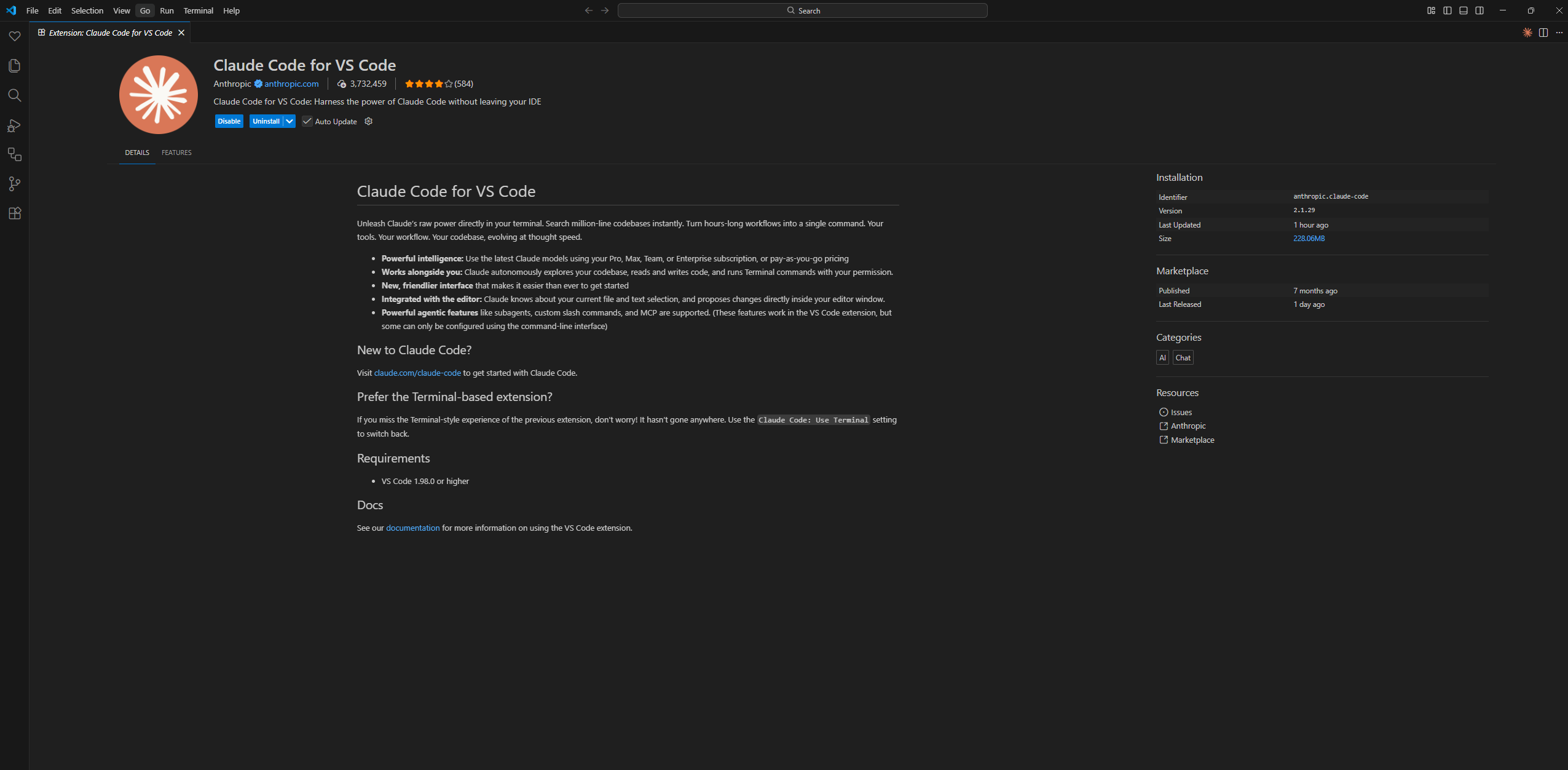
You can use Claude Code directly within VS Code. VS Code 1.98.0 or later is required.
Installation Steps
1. Open VS Code
2. Click the Extensions icon in the left sidebar (or Ctrl+Shift+X)
3. Type Claude Code in the search box
4. Find Anthropic's Claude Code extension and click Install
5. Restart VS Code
6. Click the Spark icon in the top right of the editor
7. Log in with your Claude account
Method 3: CLI Installation
This method runs Claude Code directly from the terminal. Useful for scripting and automation.
3-1. PowerShell Installation (Recommended)
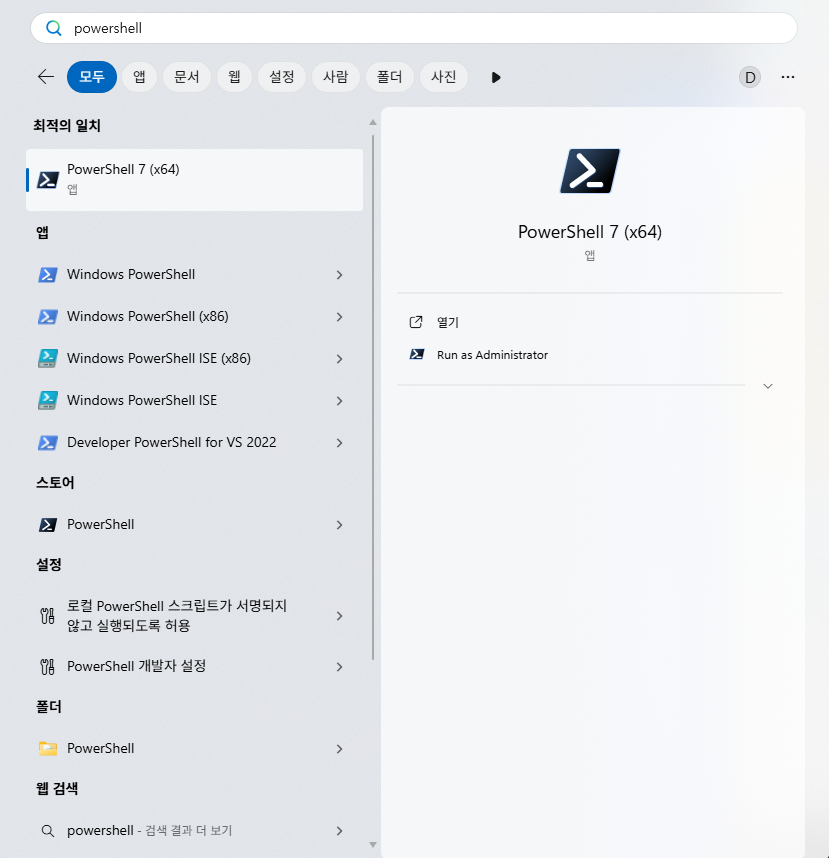
The official installation method with automatic updates.
How to open PowerShell
1. Press the Windows key on your keyboard
2. Type powershell
3. Click Windows PowerShell when it appears
Once PowerShell is open, run the following command.
irm https://claude.ai/install.ps1 | iex3-2. WinGet Installation
If you use the Windows Package Manager, this method is also available. Note that automatic updates are not supported, so you'll need to upgrade periodically.
winget install Anthropic.ClaudeCode3-3. WSL Installation
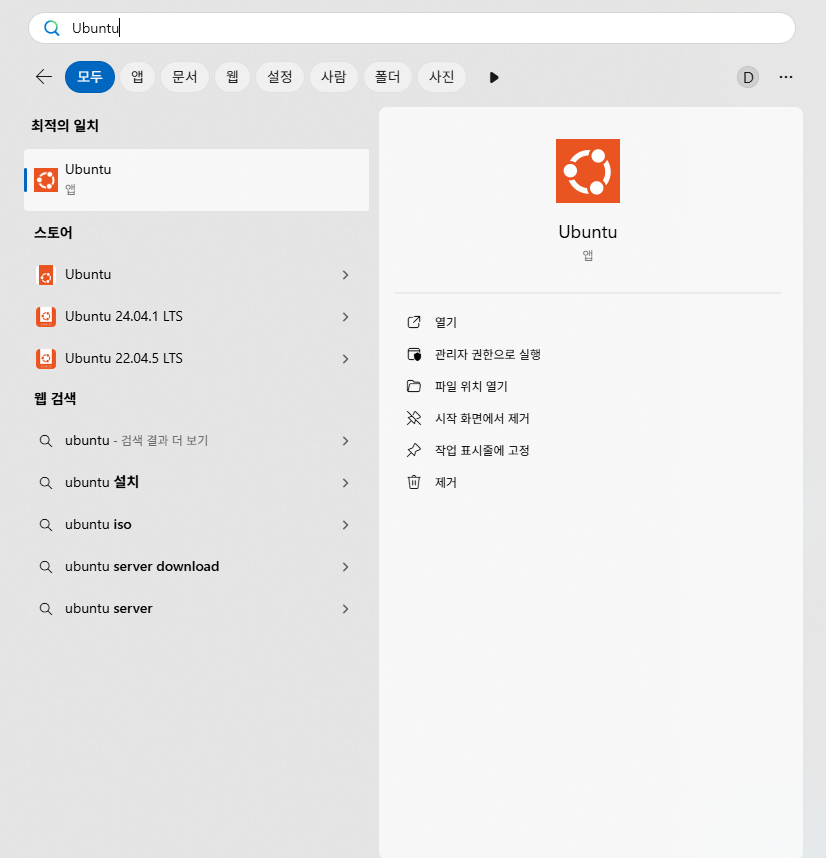
If WSL is installed, run the following command in the Ubuntu terminal.
curl -fsSL https://claude.ai/install.sh | bashOnce installation is complete, you can run it directly from the terminal.
cd your-project
claude
On first run, a browser will open requesting login. Log in with your Claude account to start using it.
Updates
PowerShell installation updates automatically. If installed via WinGet, you'll need to update manually.
winget upgrade Anthropic.ClaudeCodeThe Desktop app and VS Code extension update automatically.
Next Steps
Once installation is complete, try giving Claude simple tasks. Start with requests like 'Explain this code', 'Find bugs', or 'Add tests'. Claude Code can read files, make modifications, and execute terminal commands.
